
Save Image as PNG
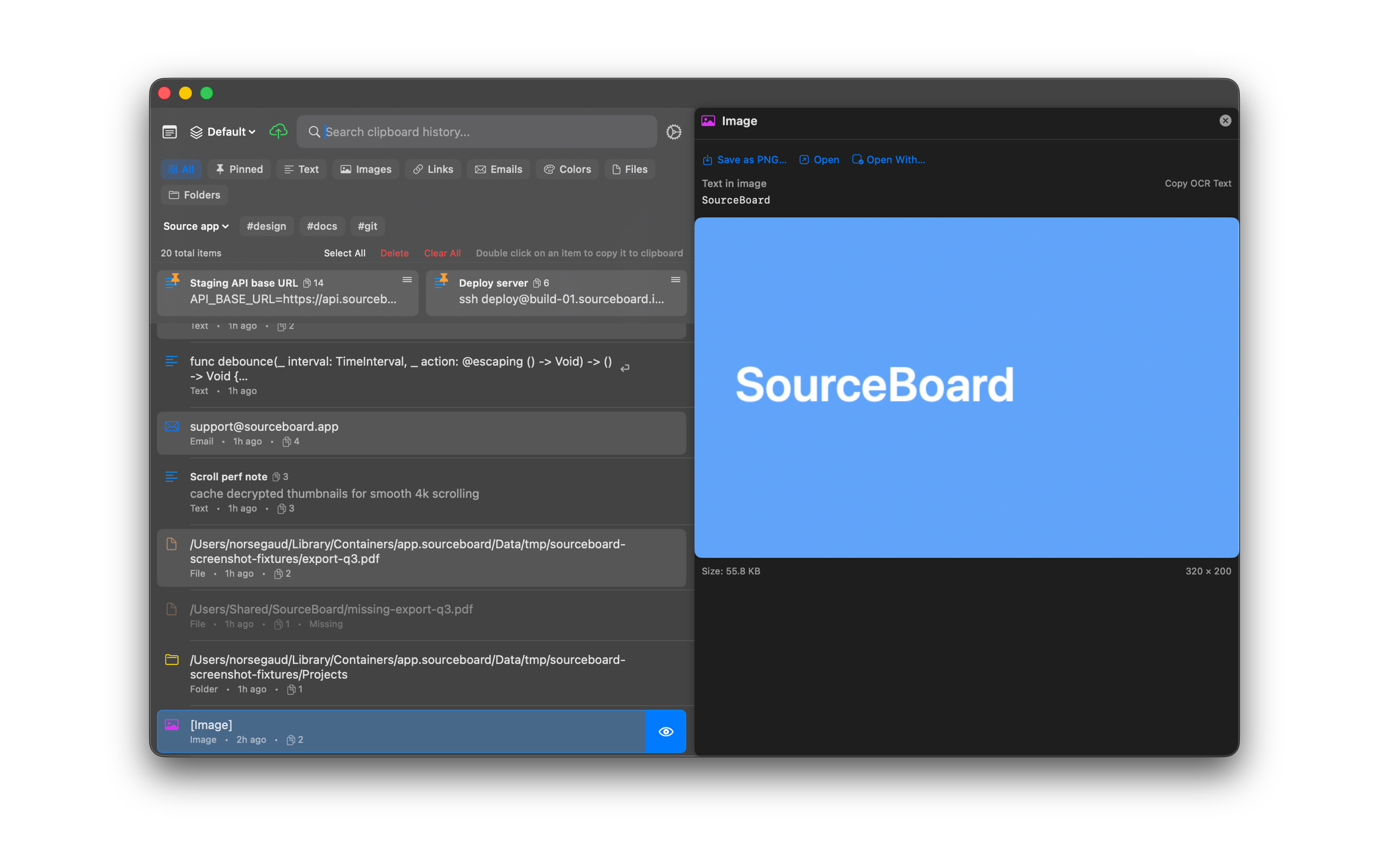
Save an image history item to a PNG file on disk. The preview can also show text recognized in the image (OCR). This feature requires a SourceBoard subscription after the trial.
How to use it
- Select an image item in history.
- Open the preview (eye button or View Details).
- Choose Save as PNG… and pick a location.
- If the image contains text, read or copy the recognized text in the preview.
Shortcuts
- Cmd+Shift+S — Save as PNG… for the highlighted image