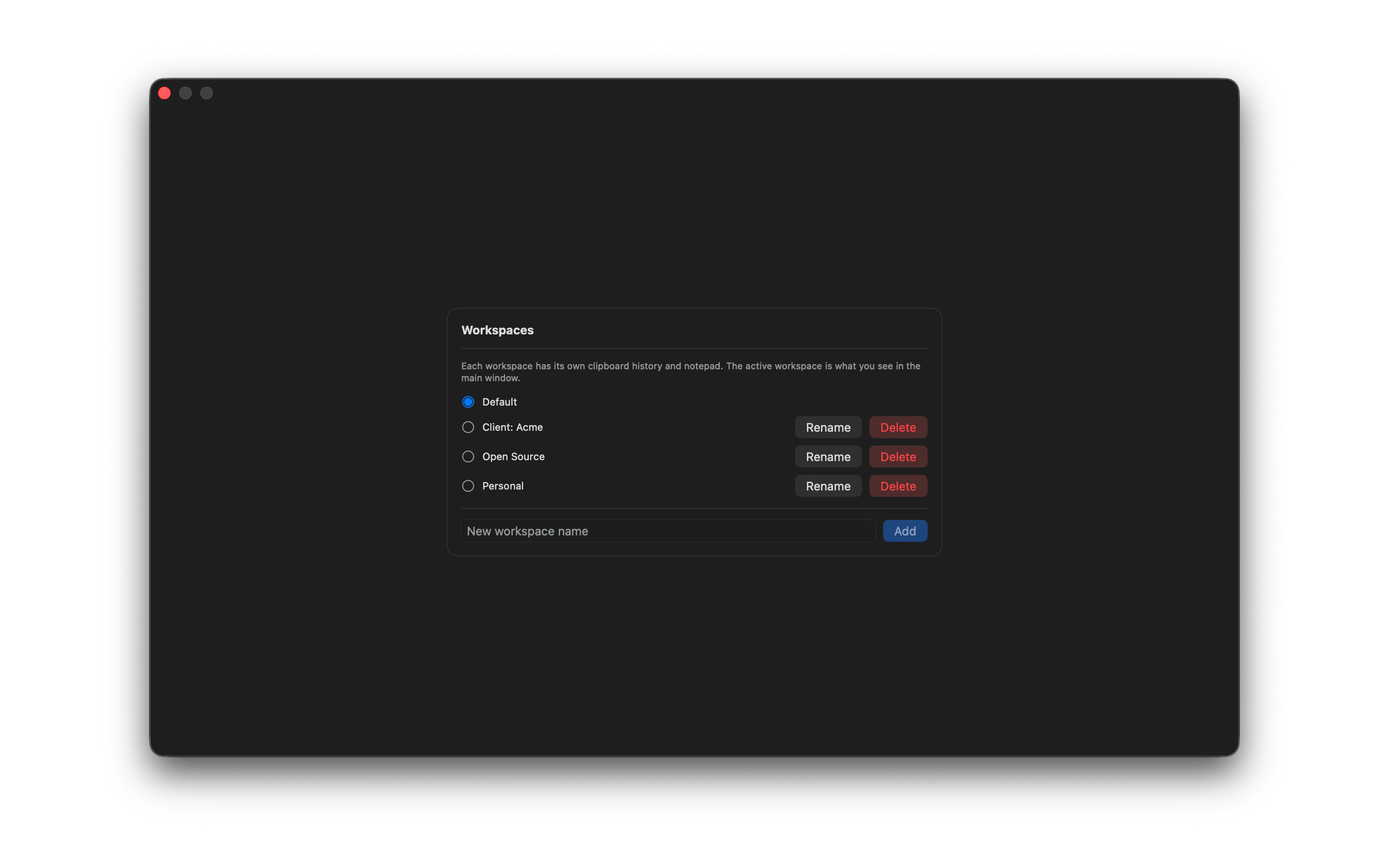

Workspaces
Separate clipboard histories and notepads by project so work stays organized. Switch workspaces from the history window toolbar — you do not need to open Settings for everyday use.
How to use it
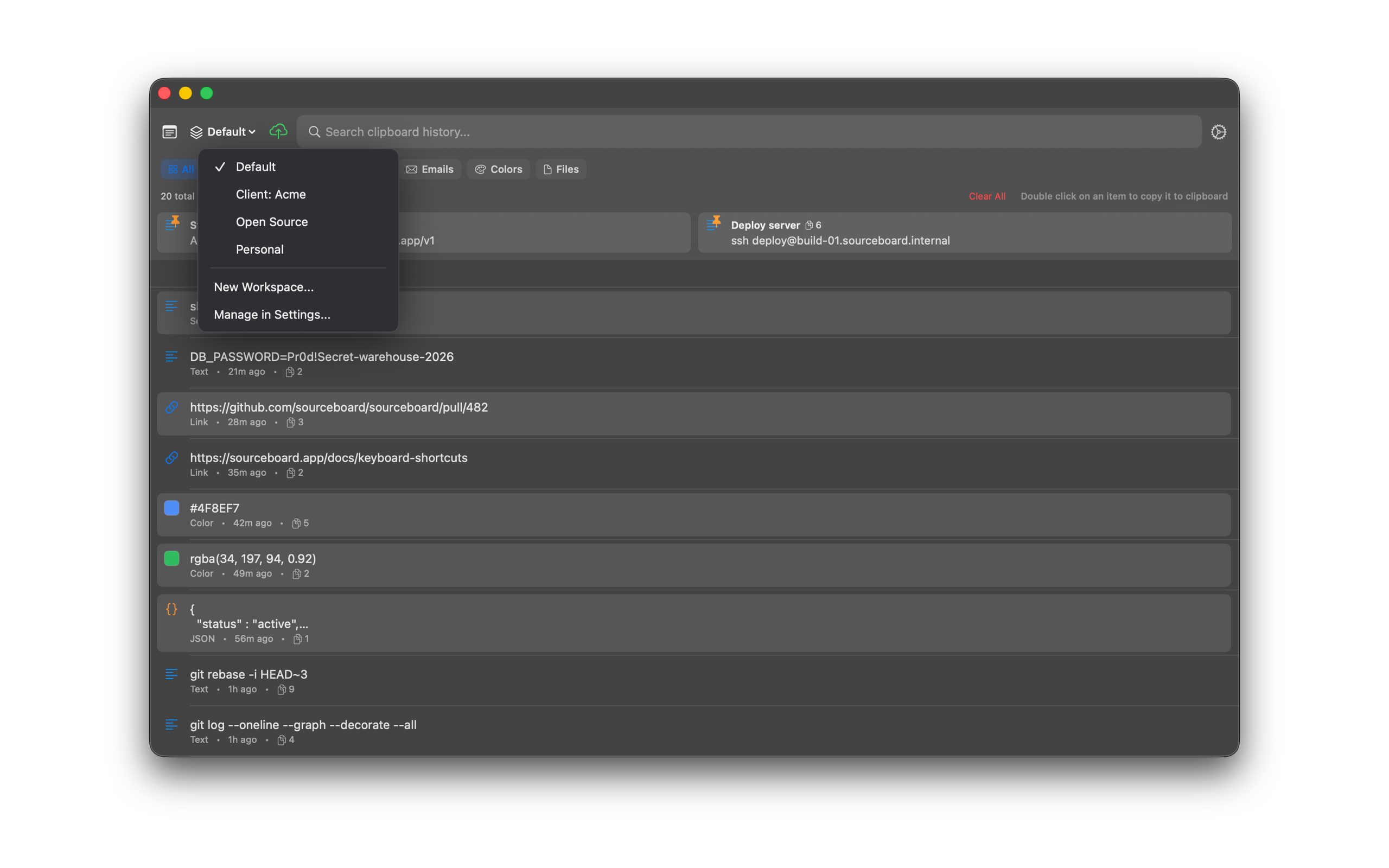
- In the history window toolbar, click the workspace button (it shows the active name, such as Default, next to the stack icon).
- Choose another workspace from the menu to switch instantly. Each workspace keeps its own clipboard history and notepad.
- Use New Workspace… in that same menu to create one without leaving the history window.
- Choose Manage in Settings… when you need to rename or delete workspaces.
Workspace menu
Manage in Settings
From the menu (or Settings → Workspaces), you can rename or delete workspaces and add new ones with a fuller manage UI.